|
|
LD E-Form Filler / Viewer User Manual 6. Operation of E-Form Filler/Viewer
6.1 Launch E-Form Filler/Viewer To launch E-Form FV, please choose "Start
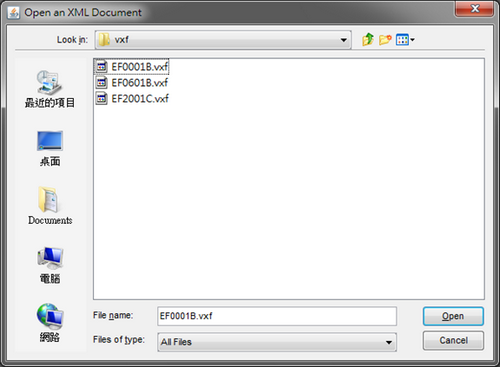
After E-Form FV is launched, you could select an existing E-Form in the first dialog box. To do so, click the "Browse" button to locate the E-Form file you wish to open and then click "Next" button to proceed.
You can also launch the E-Form FV by double clicking any E-Form file
(with .afs file extension). If you launch the E-Form FV through this channel,
the "General E-Form Information" dialog box will appear on the
screen directly. (Please see Section 6.2.1) [Top] 6.2 E-Form Viewing and Filling 6.2.1 General E-Form Information The expiry date and all signatures in the E-Form will be verified once the E-form is opened. If no problem is noted, "General E-Form Information" dialog box ("home dialog box") will appear reminding you that the E-Form should be used for filling and submission to the LD within a specified period.
[Top] 6.2.2 Detailed Signature Information E-Form FV will automatically check all the signatures in the E-Form. To list the information of all signatures and their verification results, you can click the "More Details of Signature(s)" button in the home dialog box (please refer to Section 6.2.1).
After opening an E-Form, you can still view the information of the signatures
and their verification results in the E-Form at any moment by clicking
the "Verify the E-Form" icon on the tool bar or choosing "E-Form
Filler-Viewer
[Top] 6.2.3 Creator's Digital Certificate You can acquire more information on the E-Form creator's digital certificate by clicking "View E-Form Creator's certificate" button in the home dialog box (please refer to Section 6.2.1).
After opening an E-Form, you can still view the information
of the E-Form creator's digital certificate at any moment by clicking
the "Verify the E-Form" icon on the tool bar or choosing "E-Form
Filler-Viewer
[Top] The form will become invalid when there is one or both of the following
verification failures: (a) the E-Form has been expired;
Under such circumstances, you should download the up-to-date E-Form from relevant LD webpage <URL: http://www.labour.gov.hk/eng/form/index.htm>. [Top] 6.2.5. Important Notice and Instruction "Important Notice" and "Instruction" are embedded in every E-Form. You should read them carefully before filling and signing the E-Form. To view the these two pieces of information, please click the "Show Important Notice" and "Show Instruction" buttons in the home dialog box (please refer to Section 6.2.1) respectively.
After opening an E-Form, you can still retrieve these two
pieces of information at any moment by clicking the "Important Notice
and Instruction" icon on the tool bar or choosing "E-Form
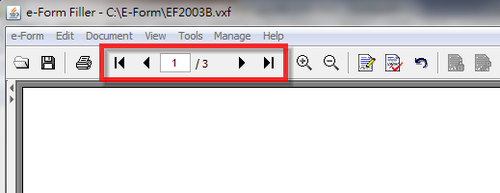
Filler-Viewer [Top] To view the E-form, click the "Next" button in the home dialog box (please refer to Section 6.2.1). The E-Form will then be opened the interface of Acrobat v5.0. [Top] 6.2.7 Load the E-Form in Acrobat After the E-Form has been loaded in the interface of Acrobat v5.0, the following five unique E-Form FV icons will be displayed on the tool bar.
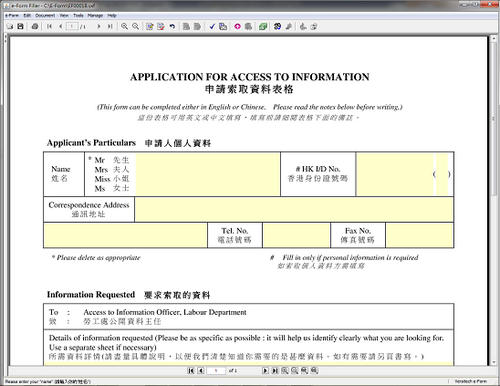
[Top] Before filling the document, please read carefully the "Instruction" section of individual E-Forms (Please refer to Section 6.2.5) and follow the guides stated therein to perform the filling. To fill the E-Form, please set the cursor to the relevant field and then type the data into the field. To jump to next filed, simply use "tab" on the keyboard. When the flashing cursor is displayed at the next field, fill in the required data.
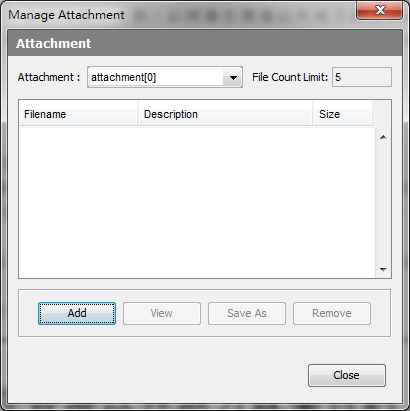
[Top] To facilitate LD in processing the E-Form, you are recommended to incorporate attachments, if any, to the E-Form by using the "Manage Document Attachment" function of the E-Form FV. To process attachment(s) of the E-Form, please choose "E-Form
Filler/Viewer
If the relevant section of the E-Form allows user to incorporate attachments, you can click "Add Attachment" button in the "Form Attachement" dialog box to add the target file to the E-Form. You can remove an attachment from the relevant section by clicking the "Remove Attachment" button in the "Form Attachment" dialog box. To extract an attachment from an E-Form, you can select the file and click "Extract File" button in the "Form Attachment" dialog box. A "Save Us" window will then be prompted asking where the attachment should be saved. [Top] Note: To sign the E-Form, please click the "Sign
the E-Form" icon on the tool bar or choose "E-Form
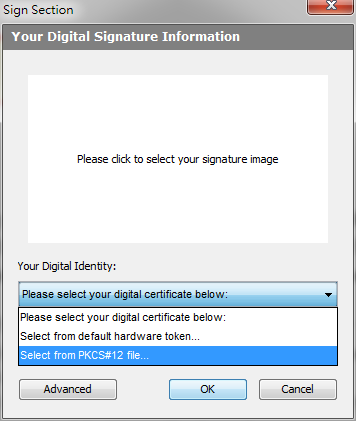
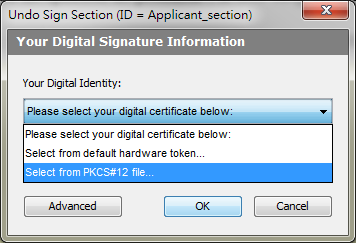
Filler/Viewer Depending on nature of individual E-Forms, certain forms have set it mandatory that users have to to sign them for authentification purpose or for meeting statutory requirements. You are therefore recommended to read the "Instruction" section of individual E-Forms (Please refer to Section 6.2.5) carefully to ensure if the E-Form in question or certain sections of it must be signed. For E-Forms which do not have such requirement, you can choose to sign the E-Form or not subject to your needs. [Top] 6.2.10.1 Select the Digital Certificate When users click the "Sign and Save the E-Form" icon on the
tool bar or choose "E-
Form Filler/Viewer
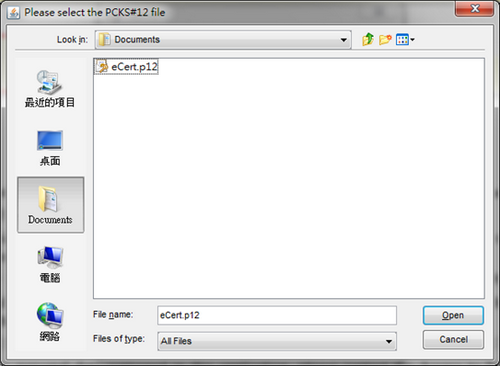
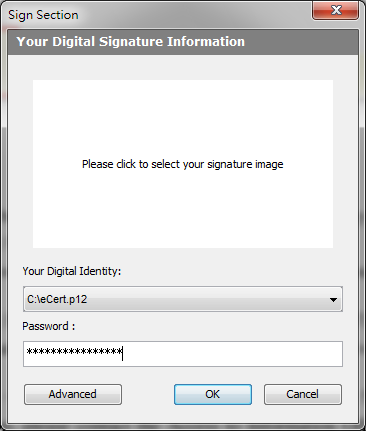
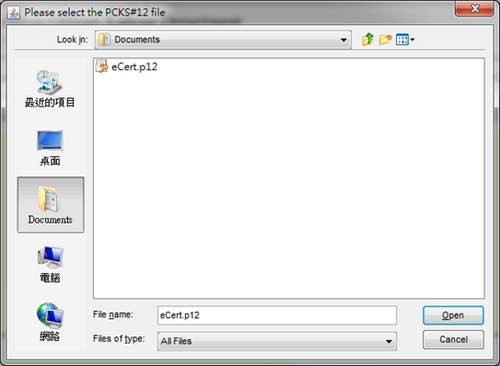
Should you wish to use the digital certificate installed in the computer system to sign E-Form, please take the following steps:
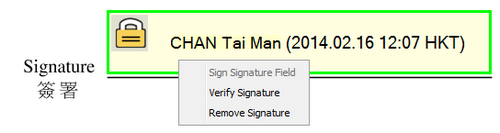
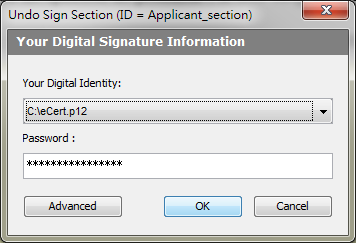
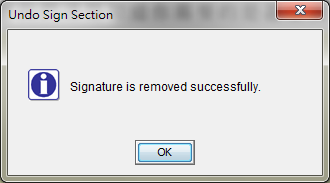
[Top] To remove signature(s) from signed E-Form, please choose"E-Form
Filler/Viewer
You can then remove the signature(s) by using the digital certificate originally used in signing the E-Form and entering the relevant password for authentication purpose. [Top] If the E-Form requires the users to specify the area information, "Location Selection" dialog box will be invoked and displayed immediately after you choose to sign the E-Form. When this dialog box appears, please select the target area and click "OK" button to proceed the operation of E-Form FV.
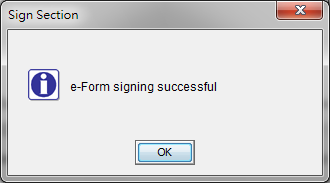
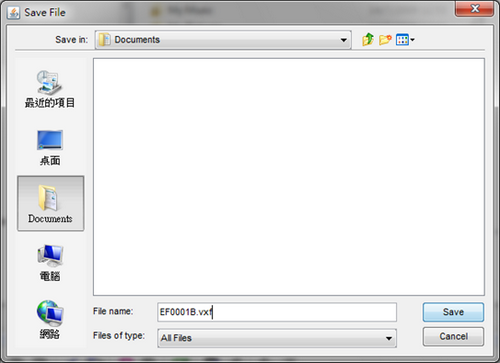
[Top] When the E-Form has been successfully signed, or you have clicked "Save
the E-Form" icon on the tool bar,or you have choosn "E-Form
Filler/Viewer
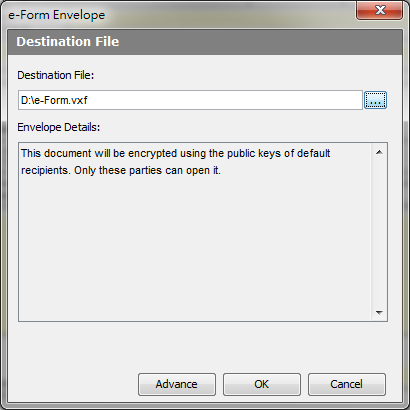
[Top] 6.2.13 Encrypt the E-Form (Optional) After the E-Form has been signed, E-Form FV will ask you whether the E-Form has to be encrypted for security reason. Please note that once an E-Form is encrypted, only LD can open it. For this reason, if the E-Form is still needed to be viewed/filled/signed/amended, you SHOULD NOT encrypt it.
If you wish to encrypt the E-Form, click "Yes" button. By then, you will be reminded that the encryption process will take some time. If you wish to proceed with the encryption, click "Continue" button.Otherwise, click "Cancel the Encryption" button.
No matter if you choose to encrypt the E-Form or not, E-Form FV will ask you if you wish to send out the E-Form through e-mail.
You will also be asked automatically if the E-Form has to be encrypted
when you click the "Send
the E-Form" icon on the tool bar or choose"E-Form
Filler/Viewer [Top] After the E-Form has been signed (and encypted, if necessary), you will be asked if you need to send out the E-Form through e-mail.
If you wish to send out the E-Form through e-mail, click "Yes" button. The E-Form will then be mailed out as an attachment. If you do not wish to send out the E-Form, click "No" button. In addition, you can also click the "Send
the E-Form" icon on the tool bar or chooses "E-Form
Filler/Viewer
In the "Submission of Application Form" window, E-Form FV has
by default set LD as the addressee. You can change the information of
the addressee or other information freely in accordance with your needs.
Then click the "Send"
button to send out the email. Note: [Top] After the above operation, you will be asked if you would like to open another E-Form.
Click "Yes" button if you wish to open another E-Form. If you don't, click "No" to exit E-Form FV. [Top] [Top] 6.2.16.1
"Sign and save the E-Form" Icon You can save and sign an E-Form at any time by clicking the "Sign"
icon on the tool bar or choosing "E-Form
Filler-Viewer [Top] 6.2.16.2
"Verify the E-Form" Icon You can verify the authenticity of an E-Form at any moment by clicking
the "Verify the E-Form" icon on the tool bar or choosing "E-Form
Filler-Viewer [Top] 6.2.16.3
"Save the E-Form" Icon You can save an E-Form at any time by clicking the "Save
the E-Form" icon on the tool bar or choosing "E-Form
Filler-Viewer [Top] 6.2.16.4
"Send the E-Form" Icon You can send out an E-Form through e-mail at any time by clicking the
"Send the E-Form"
icon on the tool bar or choosing "E-Form
Filler-Viewer [Top] 6.2.16.5
"Information Notice and Instruction" Icon You can retrieve the Important Notice and Instruction of an E-form at
any time by clicking the "Important
Notice and Instruction" icon on the tool bar or choosing "E-Form
Filler/Viewer [Top] |